
Zeller + Apple Pay - Logo lockup

Introducing Apple Pay.

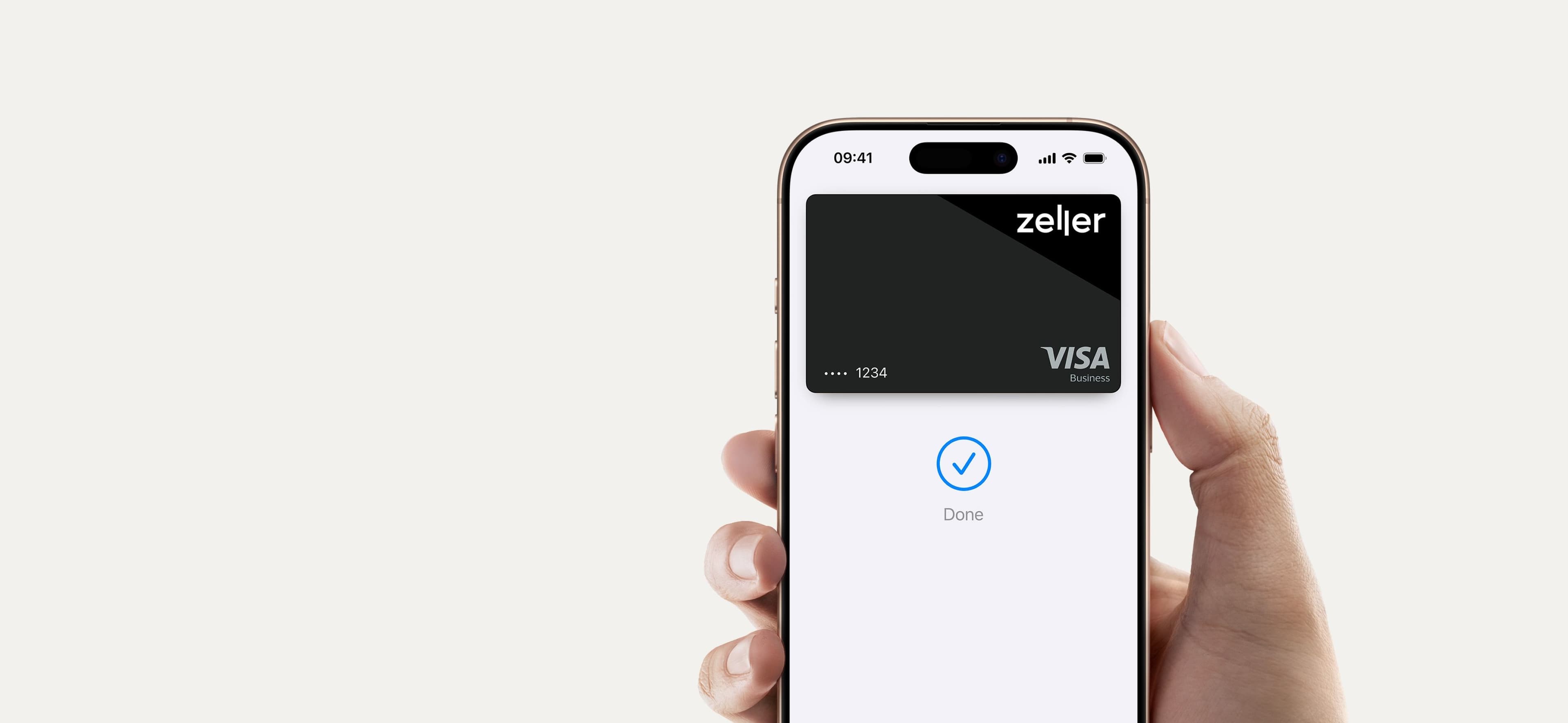
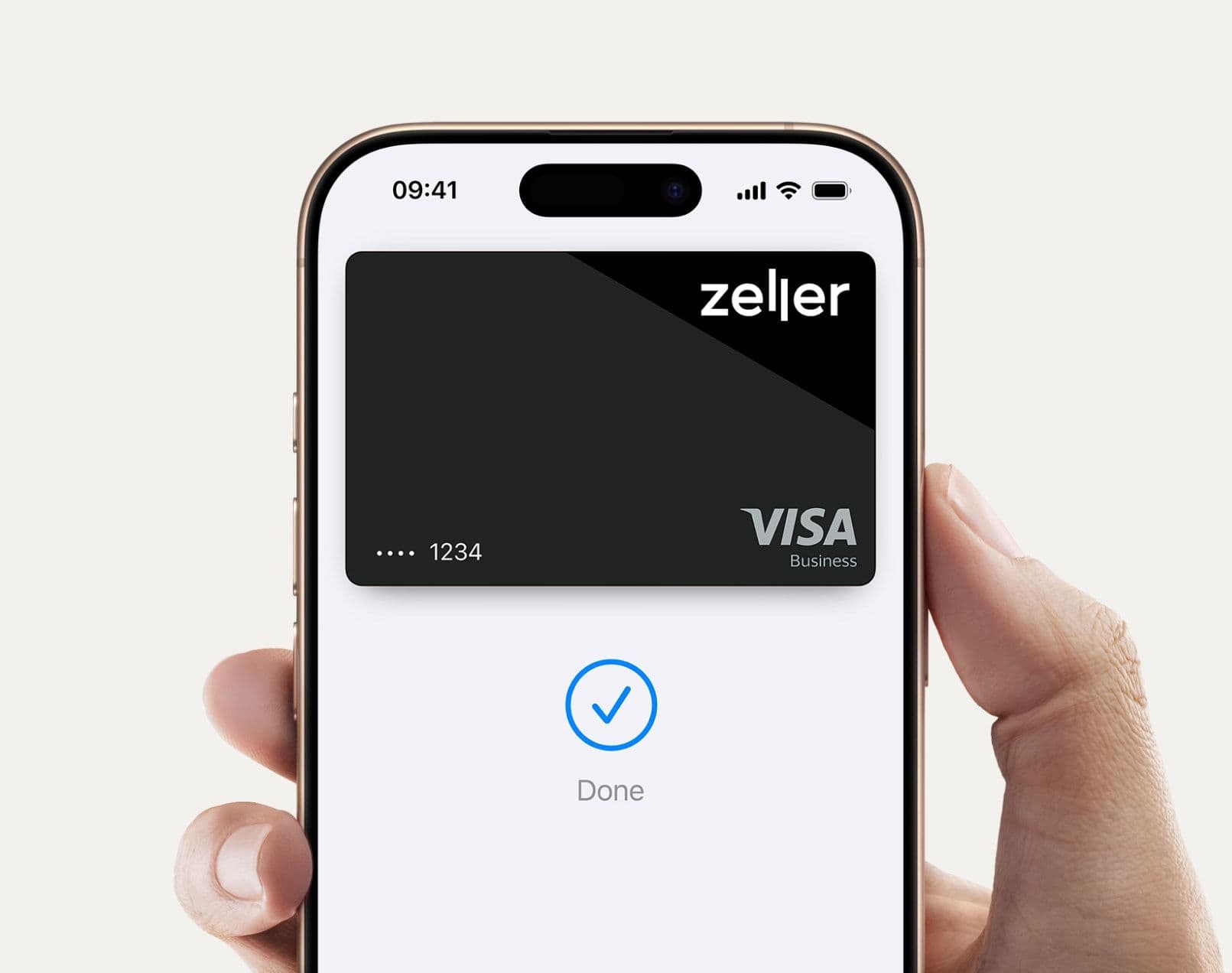
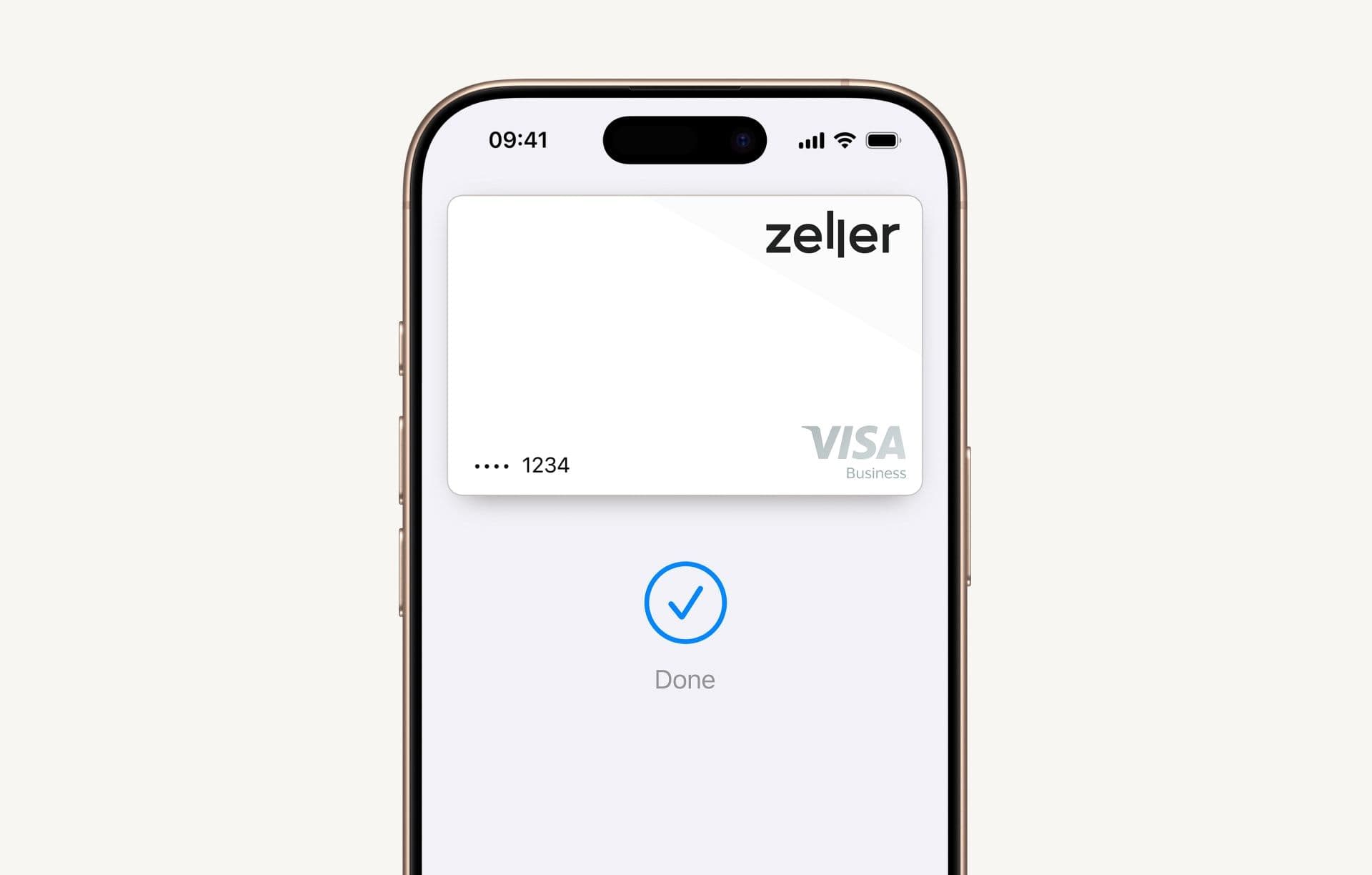
Zeller Debit Card is now on your iPhone.

Zeller Apple Pay
icon Zeller card

Easy to setup

It's simple to add Zeller Debit Card to your Apple Wallet in a few clicks.

Icon Padlock

Extra security

Authorise payments with enhanced security using Apple Pay and Face or Touch ID.

computer icon

Shop online

Your name and address will automatically populate online at checkout with Apple Pay.

Zeller - Fast money icon

Faster checkout

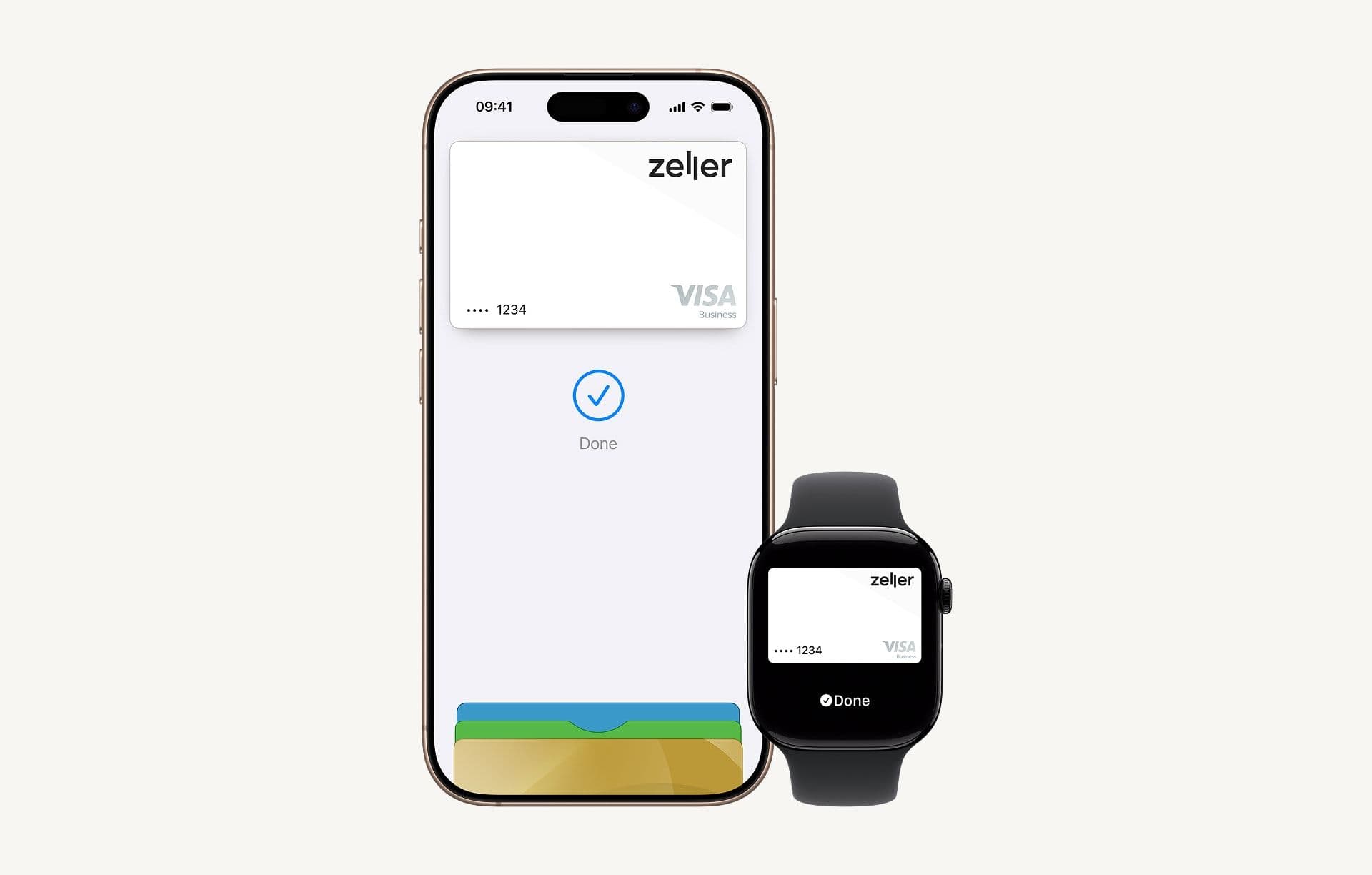
With Apple Pay, you can pay with Zeller Debit Card right from your iPhone or Apple Watch.

Add your Zeller Debit Card to Apple Pay.

Apple Pay is available on all Apple devices, and it takes seconds to add your Zeller Debit Card to Apple Wallet.
Learn more
Zeller - Apple Pay with Zeller Debit Card

Checkout is simpler with Apple Pay.

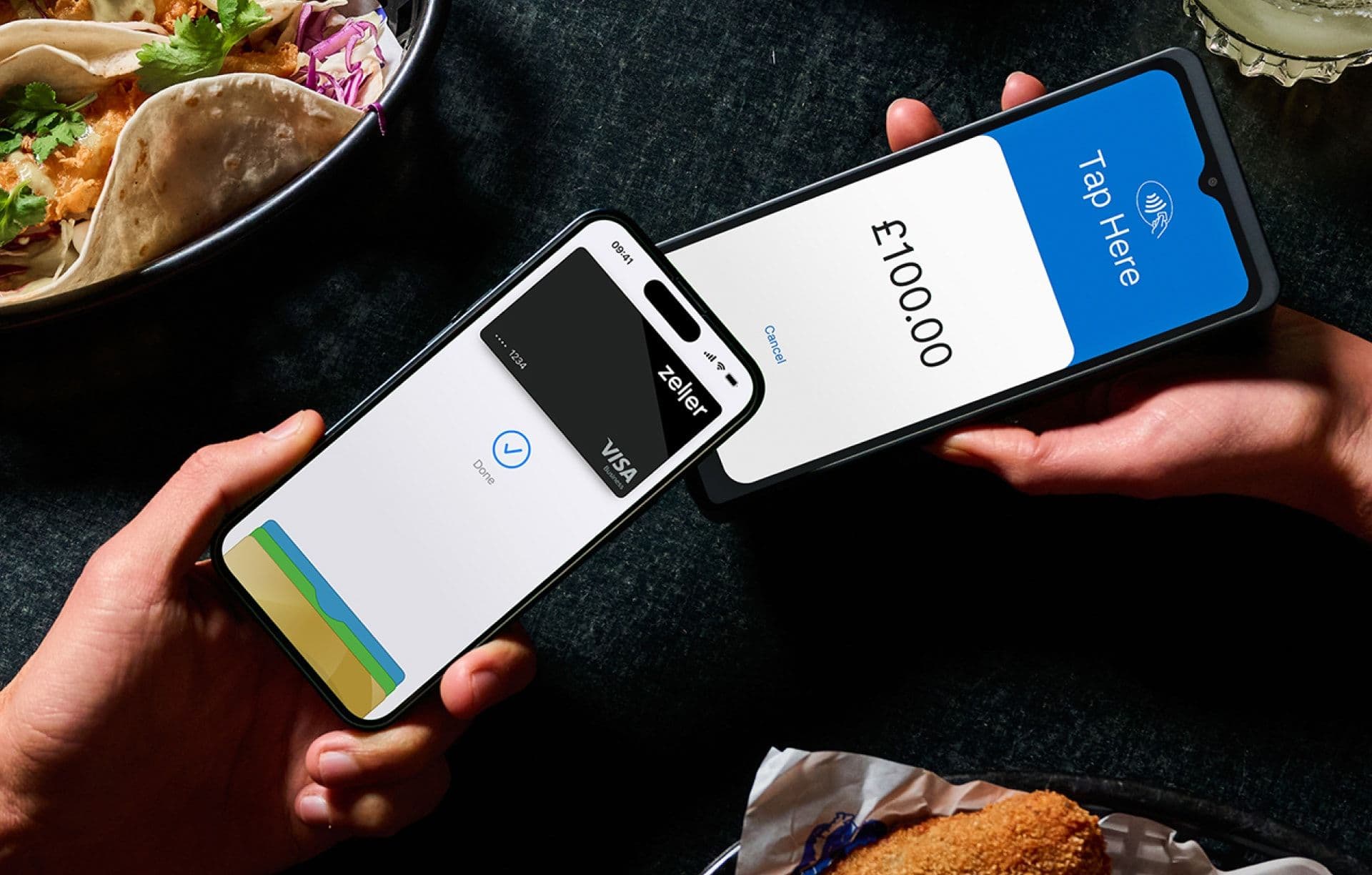
In-store

With iPhone, double-click the side button, authenticate with Face ID, Touch ID, or your passcode, then hold your device near the payment terminal to pay. With Apple Watch, just double-click the side button, then hold your device near the reader to finish your purchase.

Online or in-app

When purchasing online or in-app, tap the Apple Pay button, confirm your billing and shipping details, then authenticate with Face ID, Touch ID, or your passcode.
Zeller - Apple Pay with Zeller Debit Card

Use Zeller Debit Card anywhere you shop with Apple Pay.

Pay with Zeller Debit Card when you see these symbols in-store, online, or in your favourite apps.
Zeller - Apple Pay with Zeller Debit Card

Frequently asked questions

Yes, you can! To add your Zeller Debit Card to Apple Wallet on your iPhone:

  1. Open the Apple Wallet app on your iPhone.

  2. Tap +.

  3. Tap Debit or Credit Card

  4. Tap Continue

  5. The Apple Wallet app will prompt you to take a photo of your Zeller Debit Card so it can read the card number and expiry date. Alternatively, enter your Zeller Debit Card details manually.

  6. Verify the card details to make sure it matches your Zeller Debit Card, then press Next.

  7. Verify your expiry date, so that it matches your Zeller Debit Card, and enter your CVV (security code), then press Next.

  8. Once you have read the Terms & Conditions, tap Agree.

  9. The Apple Wallet app will prompt you to complete verification via text message to your registered phone number.

  10. The One-Time Password (OTP) that you received from the text message should be automatically populated on the Apple Wallet app.

You're set to make your first payment using Apple Pay on your iPhone.

To add your Zeller Debit Card to Apple Wallet on your Apple Watch:

If you have added your Zeller Debit Card on your iPhone:

  1. On your iPhone that is paired to the Apple Watch, open the Apple Watch app.

  2. In the My Watch tab, tap Wallet & Apple Pay.

  3. If you have added your Zeller Debit Card to your iPhone, it will be listed under the Other Cards on Your Phone section of this screen.

  4. Tap the Add button next to your Zeller Debit Card under the Other Cards on Your Phone.

  5. Enter the 3-digit CVV.

  6. Tap Next.

  7. Read the Terms & Conditions and tap Agree.

  8. If prompted, tap the Text Message option and tap Next.

  9. You will receive a text message with a One-Time Password (OTP).

  10. The OTP received via text message should be automatically populated on the Apple Watch app.

You're set to make your first payment using Apple Pay on your Apple Watch.

If you have not added your Zeller Debit Card on your iPhone:

  1. On your iPhone that is paired to the Apple Watch, open the Apple Watch app.

  2. In the My Watch tab, tap Wallet & Apple Pay.

  3. Tap Add Card.

  4. Tap Debit or Credit Card.

  5. Tap Continue.

  6. The app will prompt you to take a photo of your Zeller Debit Card so it can read the card number and expiry date. Alternatively, enter your Zeller Debit Card details manually.

  7. Verify the card details to make sure it matches your Zeller Debit Card, then press Next.

  8. Verify your expiry date, so that it matches your Zeller Debit Card, and enter your CVV (security code), then press Next.

  9. Once you have read the Terms & Conditions, tap Agree.

  10. The app will then prompt you to complete verification via text message to your registered phone number.

  11. The One-Time Password (OTP) that you received from the text message should be automatically populated on the Apple Wallet app.

You're set to make your first payment using Apple Pay on your Apple Watch.

No. There are no fees to use Apple Pay with your Zeller Debit Card.

You can pay with your Zeller Debit Card anywhere you see the Apple Pay symbols in-store, online, or in your favourite apps.

If you're using a Zeller Debit Card with Apple Pay, you can find the Device Account Number (DAN) in Apple Wallet:

Open the Wallet app on your iPhone.

Select your Zeller Debit Card.

Tap the ••• (or Card Details / Info) button.

Look for Device Account Number or Apple Pay Number. You'll see the last few digits displayed.

Zeller's own guidance states:

"All cards stored in Apple Pay are allocated a Device Account Number... You can find your Device Account Number by opening the Wallet app, selecting your card and tapping the (i) symbol."

This number is different from the number printed on your physical Zeller card and is often needed for refunds or transaction lookups when you paid using Apple Pay.

If you're trying to locate a specific Apple Pay transaction or process a refund, tell me what device you're using (iPhone, Apple Watch, etc.) and I can give the exact steps.

For more information on Apple Pay, including how to set it up, supported devices, security, and how to use it in stores, online, and in apps, visit Apple's official Apple Pay support pages.